-
Shop
- Adidas
- Advanced Technologies
- Apple Accessories
- Armani Fashion
- Arts, Crafts & Hobbies
- Beauty & Skincare
- Best-Sellers
- Calvin Klein Fashion
- Car Accessories
- Dating & Social Skills
- Drones
- Education & Learning
- Electronics
- Emotional Intelligence
- Family & Parenting
- Fashion
- Alexander McQueen Fashion
- Bags
- Bags & Wallets
- Balenciaga Fashion
- Belts
- Blazers
- Blouses & Shirts
- Bottega Veneta Fashion
- Bottoms
- Brunello Cucinelli Fashion
- Burberry Fashion
- Chanel Fashion
- Chloé Fashion
- Dior Fashion
- Dolce & Gabbana Fashion
- Dresses
- Etro Fashion
- Fendi Fashion
- Gucci Fashion
- Hats & Hair Accessories
- Hoodies & Sweatshirts
- Jacquemus Fashion
- Jewelry
- Jil Sander Fashion
- Jimmy Choo Fashion
- Kiton Fashion
- Luggage
- Luggage Bags
- Men's Fashion
- Miu Miu Fashion
- Off-White Fashion
- Outerwear
- Prada Fashion
- Rick Owens Fashion
- Saint Laurent Fashion
- Scarves
- Shoes
- Skirts
- Socks & Tights
- Sunglasses
- Sweaters & Cardigans
- The Row Fashion
- Tom Ford Fashion
- Tops & Shirts
- Trousers
- Valentino fashion
- Valentino Garavani Fashion
- Versace Fashion
- Vivienne Westwood fashion
- Watches
- Fashion Accessories
- Finance & Career
- Fitness & Movement
- Gadgets
- Gift Ideas
- Gifts
- Guess Fashion
- Health & Beauty
- Health & Wellness
- Home & Garden
- Home & Lifestyle
- Home Supplies
- Hormone & Women’s Health
- Kids & Babies
- Massagers
- Mindset
- Mindset & Personal Growth
- Nike Fashion
- Nutrition & Healthy Eating
- Patio, Lawn & Garden
- Personal Growth
- Pet Care
- Pet Supplies
- Pets
- Productivity
- Relationships & Social Confidence
- Samsung Accessories
- Self-Care & Mental Well-Being
- Sleep & Rest
- Sport
- Sport & Outdoors
- Style & Fashion
- Summer 2025 Fashion Collection
- Super Deals
- Tesla Accessories
- Tommy Hilfiger Fashion
- Travel
- Travel & Outdoors
- Video Games
- Wealth
Cat Ears RGB Gaming Headset: Fit, Mic & Lighting Tips
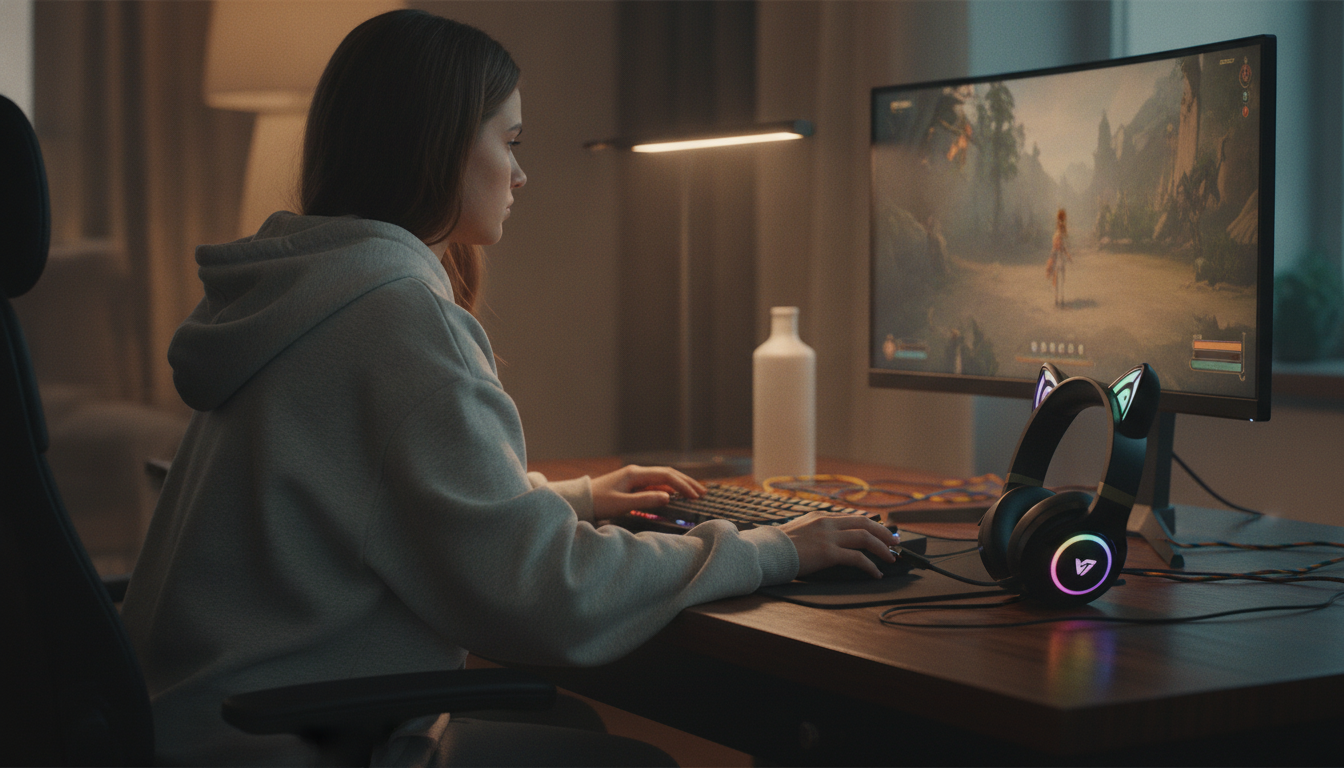
Cute Cat Ears RGB Gaming Headset: playful style, real everyday performance
A playful cat-ear look meets colorful RGB lighting for a headset that’s made to stand out on a desk, on stream, or in a group chat. The Cute Cat Ears RGB Gaming Headset blends fun aesthetics with the basics that matter most day to day: comfort, usable sound, and a clear-enough mic for gaming, classes, and casual streaming.
Below are practical ways to get a better fit, cleaner voice chat, and lighting that looks great on camera—without turning your setup into a distraction.
Quick look: what it’s great for
- Gaming sessions where comfort and an easy-to-find fit matter
- Voice chat for co-op, calls, classes, and casual streaming
- Aesthetic setups that pair lighting with keyboards, mice, and PC cases
- Gift-worthy style for cat lovers and RGB fans
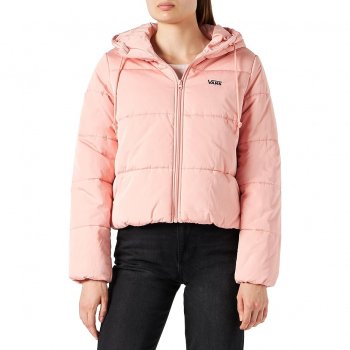
If the vibe is part of the goal, consider pairing your desk setup with cozy, color-forward pieces like the Vans Women’s Pink Hooded Jacket for an on-stream look that matches the playful, pastel energy many cat-ear RGB setups go for.
Design details that change the vibe
- Cat-ear silhouette: Adds a cute, character look without needing extra accessories.
- RGB lighting: Creates a stronger presence on camera and in dim rooms, especially when it’s not competing with harsh overhead lights.
- Balance matters: The best visual effect usually comes from matching headset brightness to nearby desk lighting so colors stay saturated instead of washed out.
- More subtle mode: For school or work calls, turning lighting down (or off) keeps the look cleaner and less attention-grabbing.
Comfort and fit for longer sessions
Even a cute headset needs to disappear once the match starts. Small adjustments can make a big difference in how long it feels good.
- Get a gentle seal: Earcups should seal around the ear rather than press hard into it. A good seal helps bass and makes outside noise less noticeable.
- Watch for headband hotspots: If the top of your head starts to feel sore, slightly adjust the size and shift the band forward/back until pressure feels even.
- Glasses-friendly tips: Softer cushions reduce pressure on frames. If you feel soreness where the arms of your glasses meet the ear pad, take a short break and reseat the cups.
- Route the cable intentionally: Keep the wire behind your shoulder or along the desk edge to prevent tugging that slowly drags the headset out of position.
| Check | What to look for | Why it helps |
|---|---|---|
| Earcup seal | Even contact around the ear | Improves bass and reduces outside noise |
| Headband tension | Secure but not tight | Reduces fatigue during long sessions |
| Mic position | Close to mouth but not touching | Clearer voice with fewer pops |
| Break schedule | 5 minutes every hour or two | Helps prevent ear and head fatigue |
Sound: what to expect and how to tune it
- Competitive play: If footsteps and reload cues feel buried, try slightly reducing bass and adding a touch of mid/treble presence so small details cut through.
- Single-player and music: A warmer sound (more bass) can feel more immersive—just keep dialogue clear so cutscenes don’t get muddy.
- Adjust gently: If your headset has inline controls or software, start from a neutral profile and make small changes rather than large boosts (big boosts can introduce harshness or distortion).
- Room noise changes everything: In a quieter space, you can run lower volume and still hear detail. That’s easier on your ears over long sessions.
For safe-listening guidance during long gaming nights, the World Health Organization’s Make Listening Safe recommendations are a useful reference point.
Microphone clarity for chat and streaming
If you use Discord often, their Voice and Video troubleshooting steps can help pinpoint whether the issue is input selection, permissions, or processing settings.
RGB lighting: controls, power notes, and camera tips
Compatibility and setup (PC, console, and mobile)
| Problem | Likely cause | Quick fix |
|---|---|---|
| No sound | Wrong output device selected | Choose the headset as default audio output |
| Mic not working | Wrong input device or muted inline switch | Select headset mic; toggle mute off |
| Buzz or crackle | Loose connection or noisy port | Reseat plug; try a different port |
| Teammates hear echo | Audio too loud or monitoring enabled | Lower volume; disable mic monitoring if available |
Care, storage, and keeping it looking cute
Product snapshot and where it fits best
| Item | Details |
|---|---|
| Product | Cute Cat Ears RGB Gaming Headset |
| Price | 75.95 USD |
| Availability | In stock |
| Style add-on (optional) | Women’s Beige Faux Fur Jacket |
FAQ
Does the RGB lighting work on every device?
RGB behavior depends on how the headset is powered and connected. Some devices or ports may provide audio but not enough power for lighting effects, so using the intended cable/port (and fully seating the connection) typically delivers the most consistent lighting.
How can the microphone sound clearer in voice chat?
Place the mic close to your mouth but slightly off-center, then confirm the headset mic is selected as the input device in your app or console. If the sound is harsh or distorted, lower mic gain; if background noise is noticeable, enable noise suppression in your chat settings.
How loud should a gaming headset be for long sessions?
Stick to a moderate volume and take short breaks to reduce ear fatigue, especially during multi-hour sessions. If teammates are hard to hear, improve the earcup seal or adjust EQ for clarity instead of continuously increasing volume.
Recommended for you
Was this article helpful?
Yes
No







Leave a comment